Connect AbstractCRE to Claude with a custom MCP connector
Give Claude secure access to your AbstractCRE abstracts in seven steps: enable MCP for your organization, add the connector in Claude, and authorize it.
What you'll need
- MCP server URL
https://api.abstractcre.com/mcp- OAuth client ID
c0h2lMHDo66618YkprolnJwxtVzWmQPT- Access
- Permission to change Organization Settings in AbstractCRE, and the Claude app
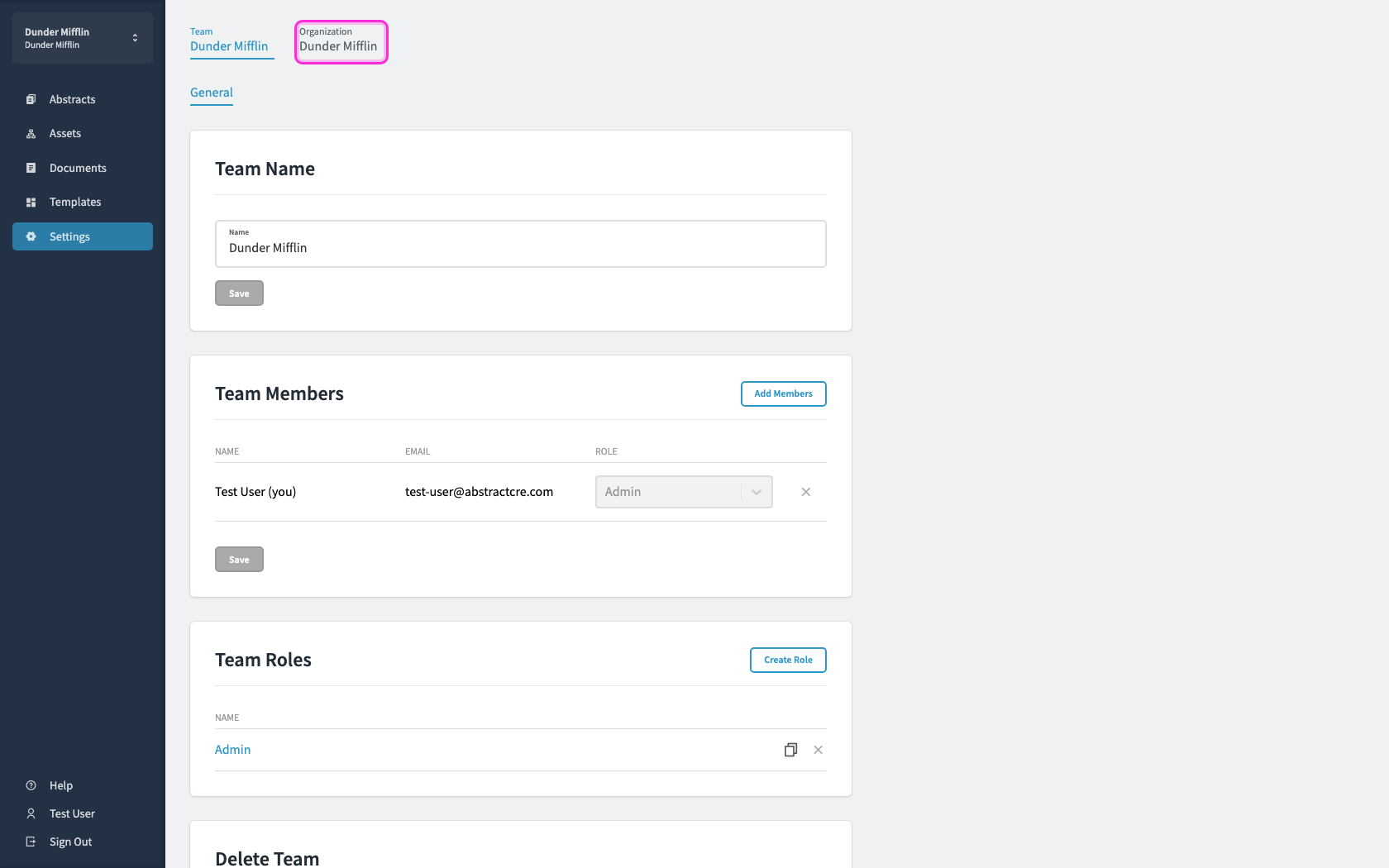
Click Settings in the left sidebar, then open the Organization tab.
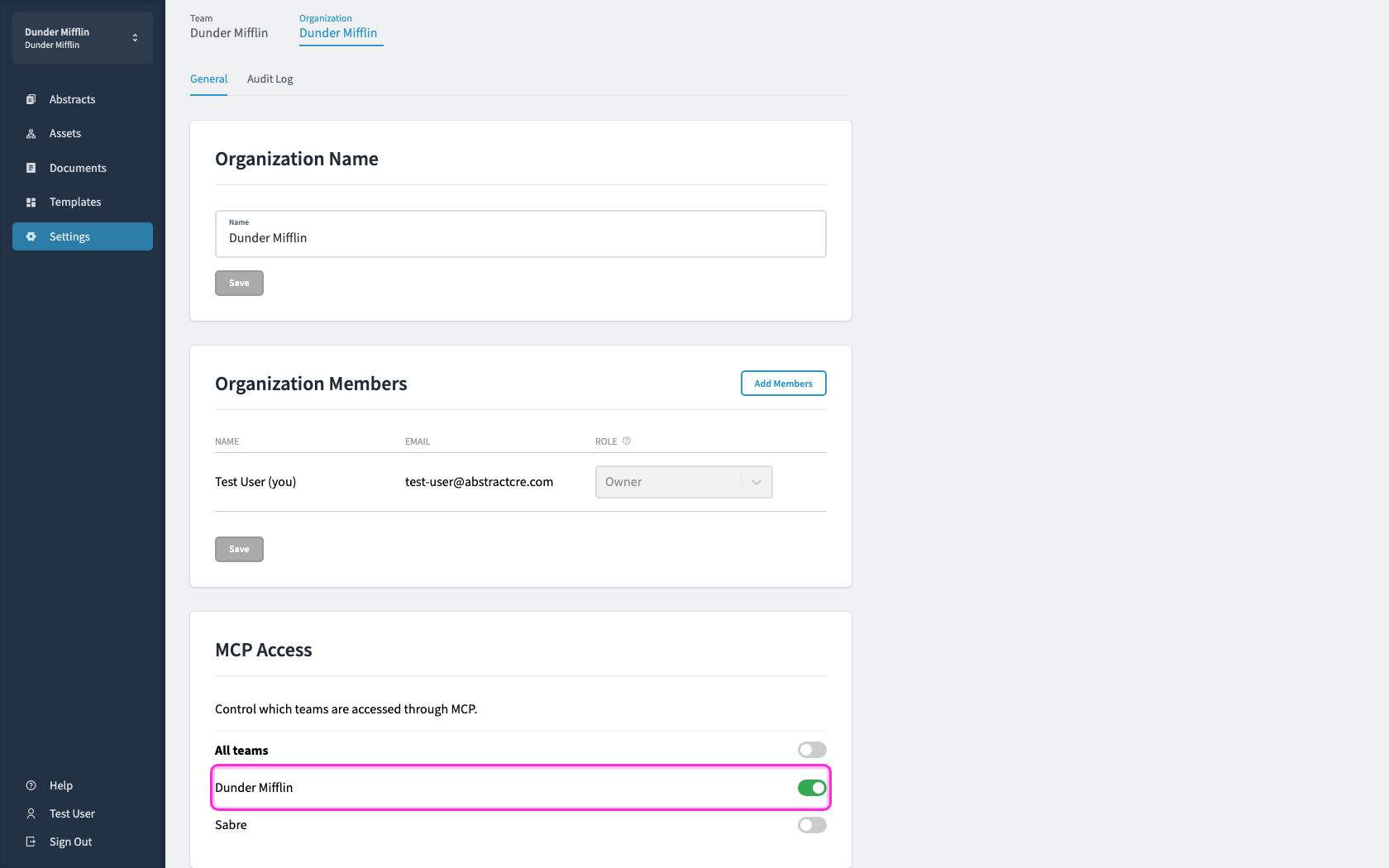
Scroll to MCP Access and switch on each team Claude should be able to read (or All teams).
Start a new custom connector
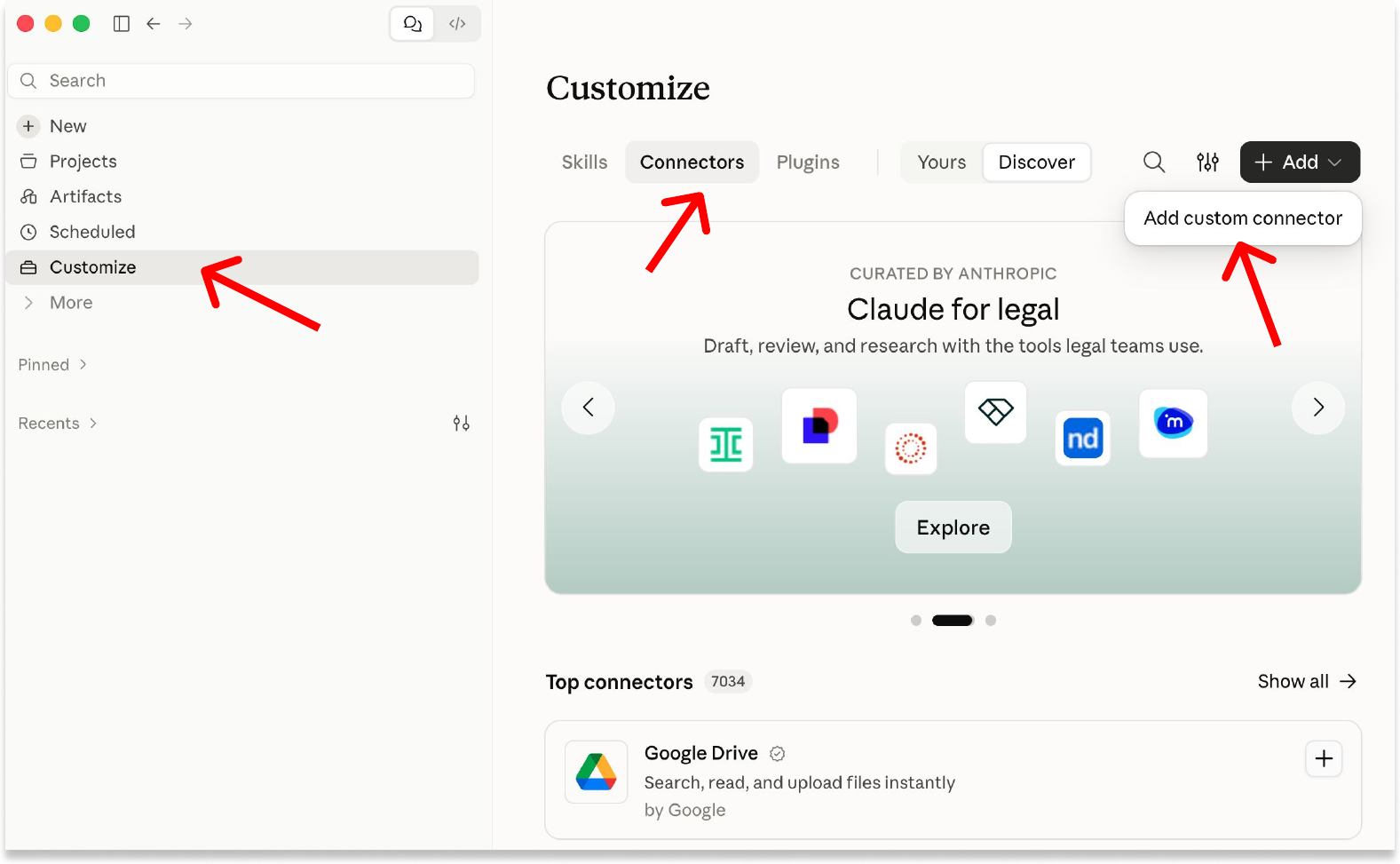
Go to Customize in the sidebar, open the Connectors tab, then click Add › Add custom connector.
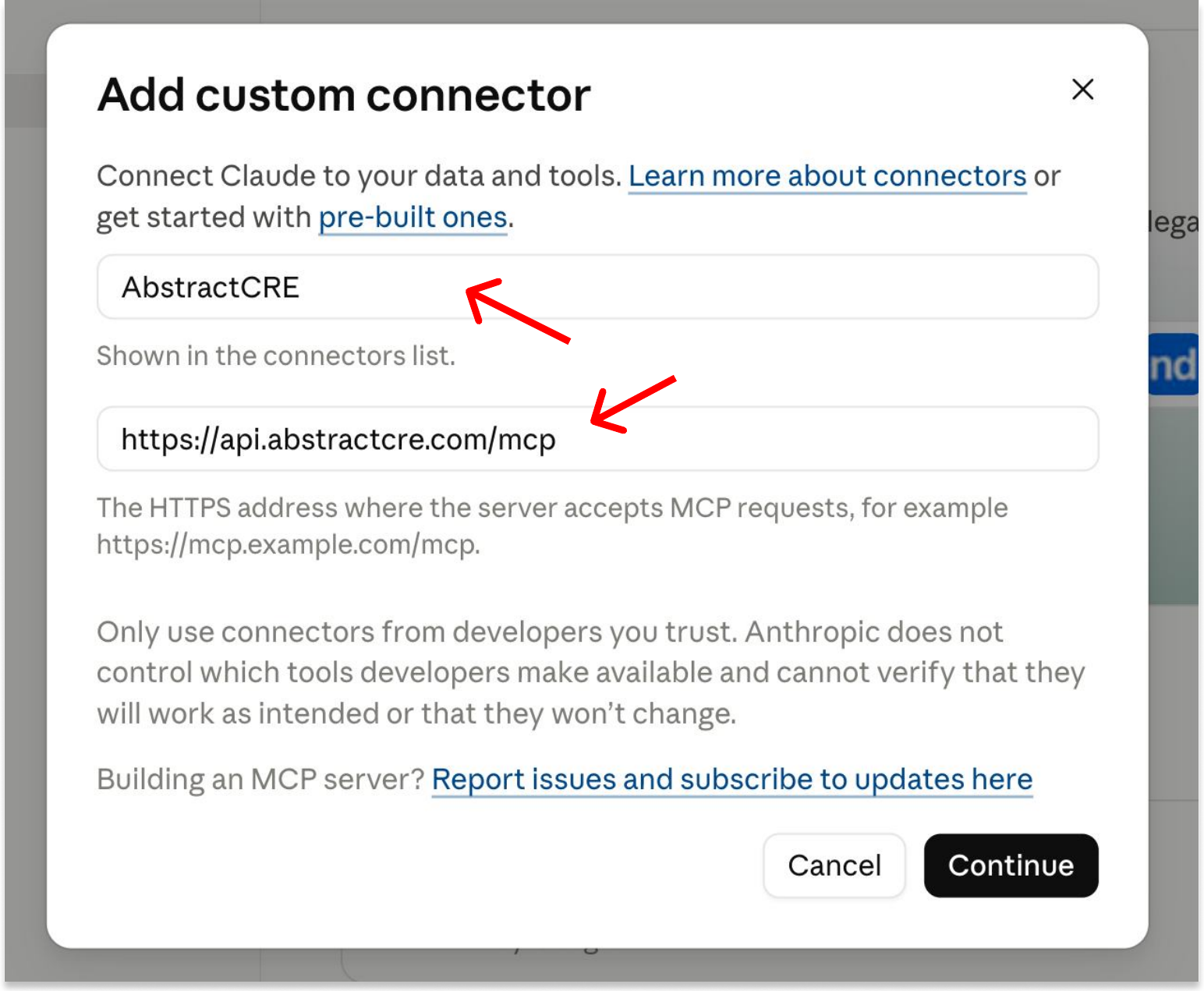
Enter the name and server URL
Name: AbstractCRE
URL: https://api.abstractcre.com/mcp
Click Continue.
Set authentication and the OAuth client
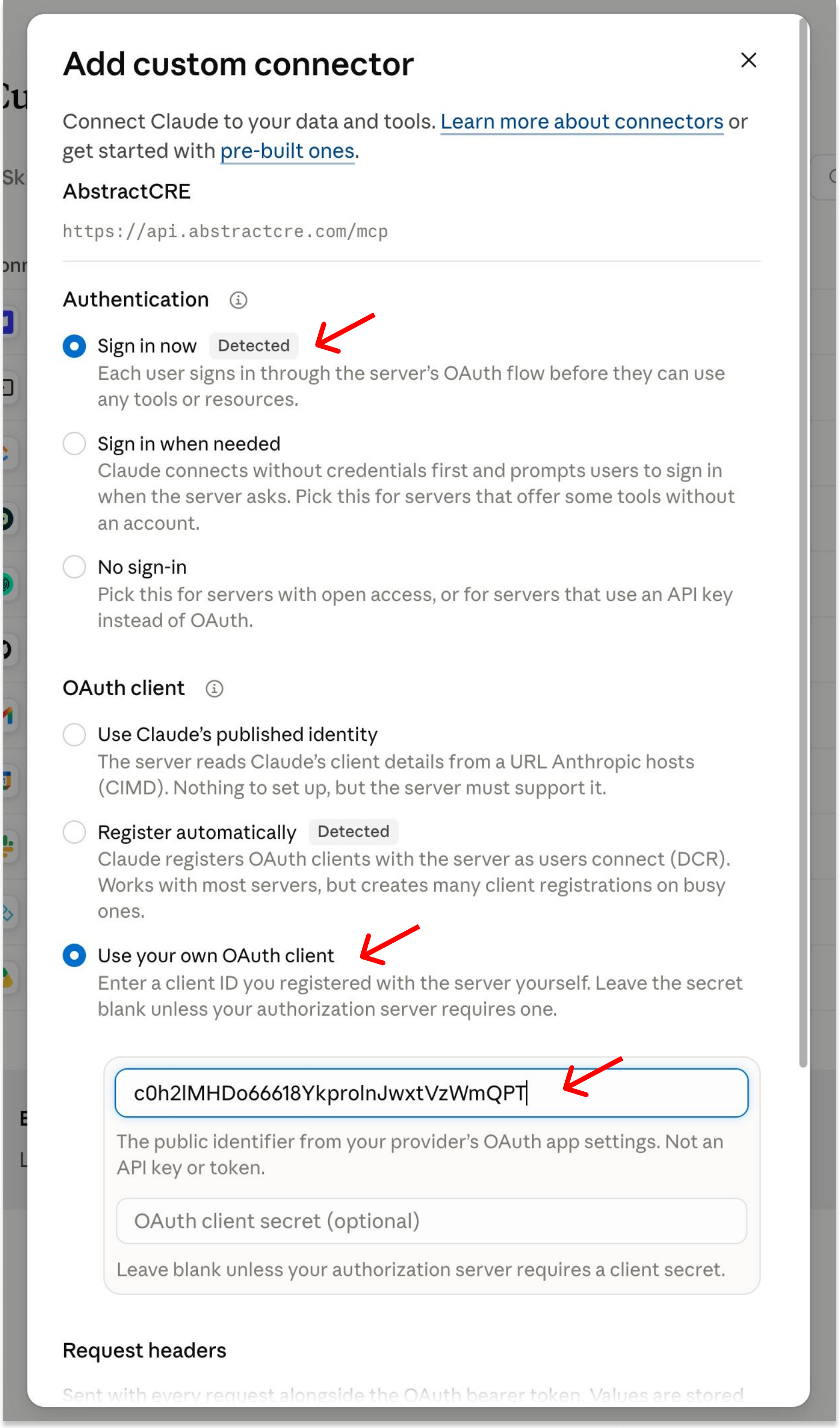
Under Authentication, select Sign in now.
Under OAuth client, select Use your own OAuth client.
Paste this client ID: c0h2lMHDo66618YkprolnJwxtVzWmQPT
Leave OAuth client secret blank, then finish adding the connector.
Copy the client ID rather than retyping it. It contains lowercase l (not capital I) and the digit 0 (not the letter O).
Connect
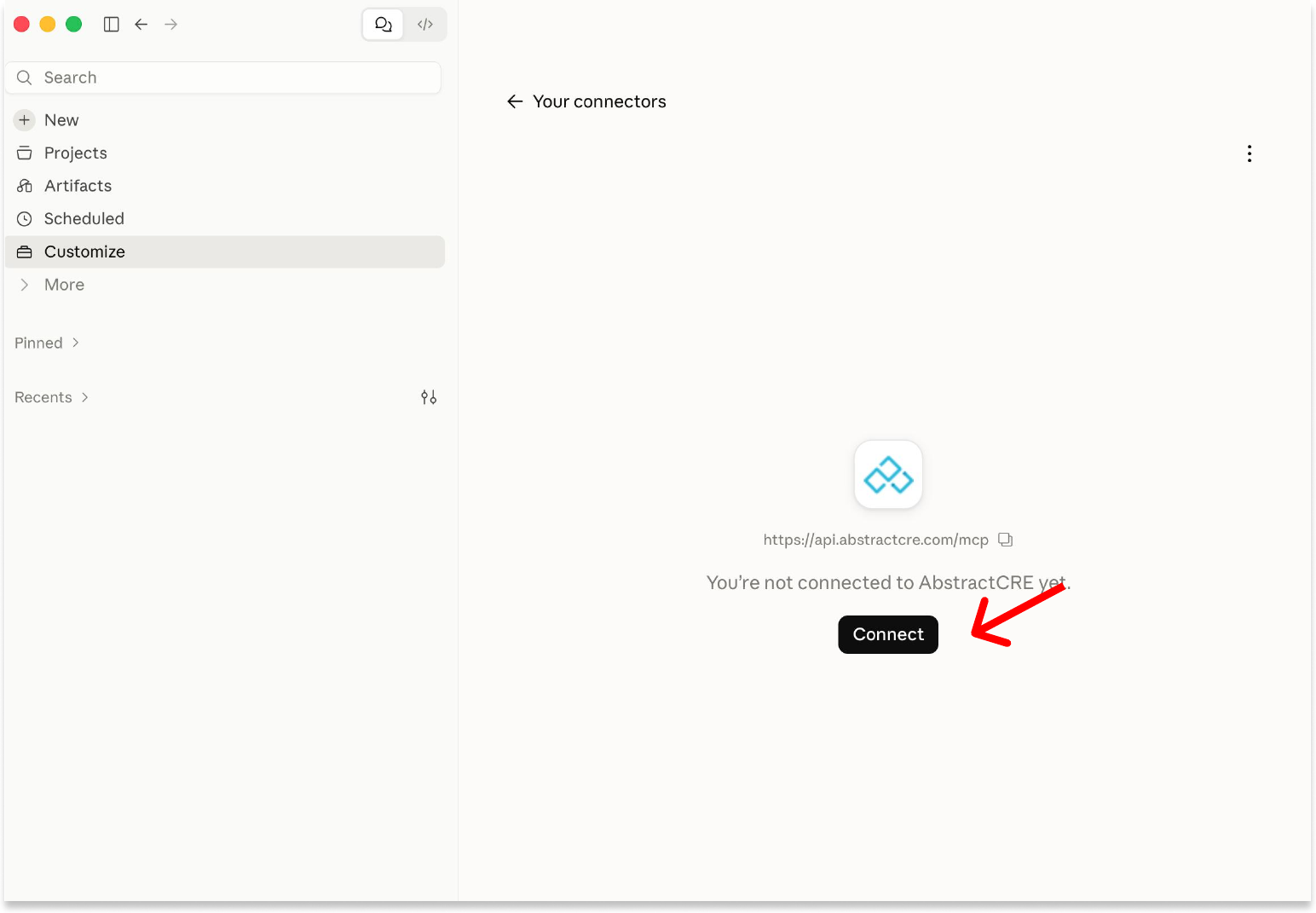
On the AbstractCRE connector page, click Connect. Your browser opens to the AbstractCRE sign-in.
Authorize the app
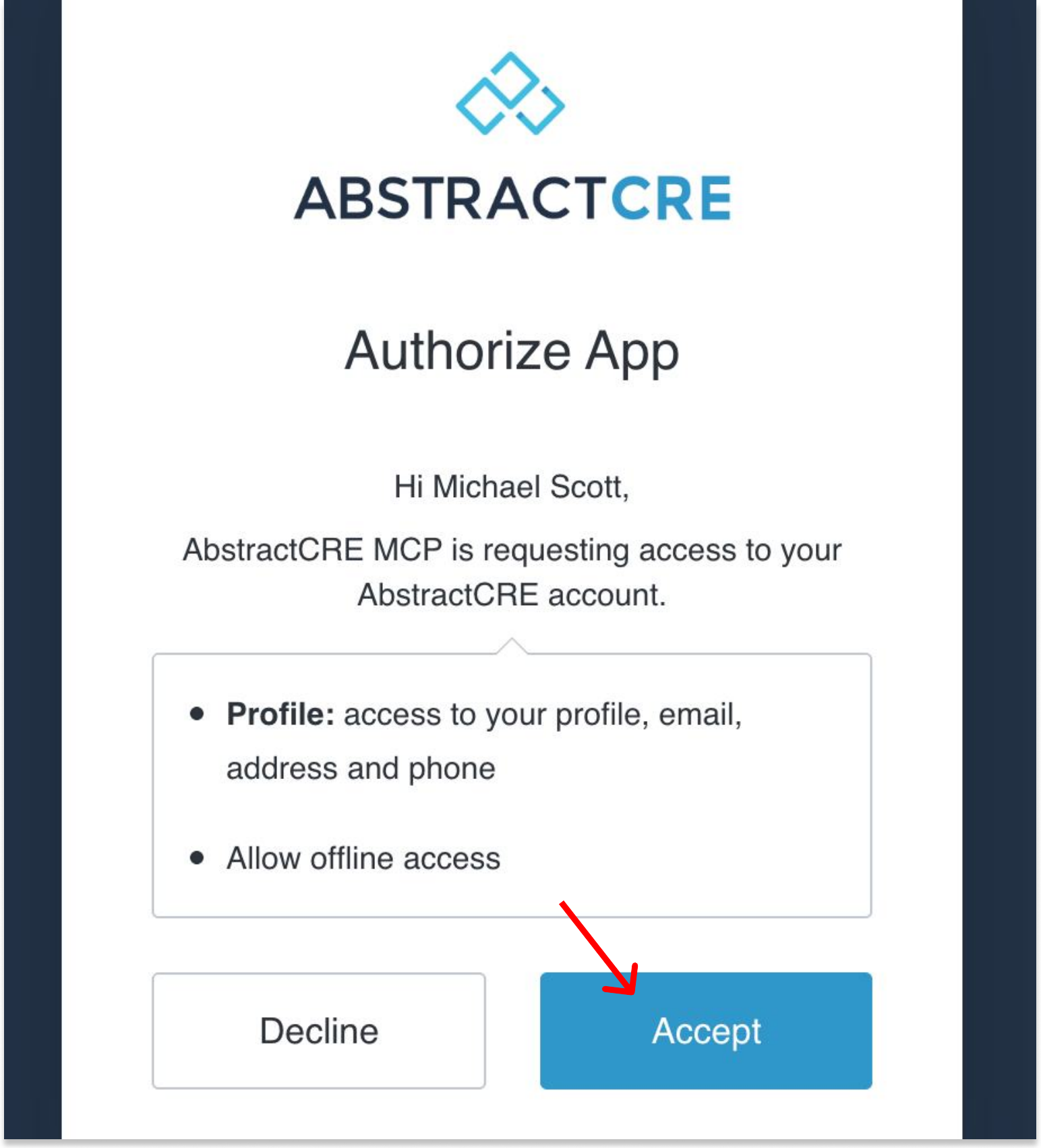
Sign in to AbstractCRE if prompted, review the requested access, and click Accept.
You're connected. Head back to Claude and ask a question about your abstracts, for example "Which leases in Asset Mgmt expire in the next 12 months?"