Set up Multi-factor Authentication
Turn on multi-factor authentication with an authenticator app.
Install an authenticator app.
If you already have an authenticator app, skip to enabling multi-factor authentication. You can use the same authenticator app for every service that supports it. The app can be installed on any device you have. These instructions use Microsoft Authenticator on a phone. If you are unsure, ask your IT administrator.
For iPhone, install Microsoft Authenticator from the App Store.
For Android, install Microsoft Authenticator from Google Play.
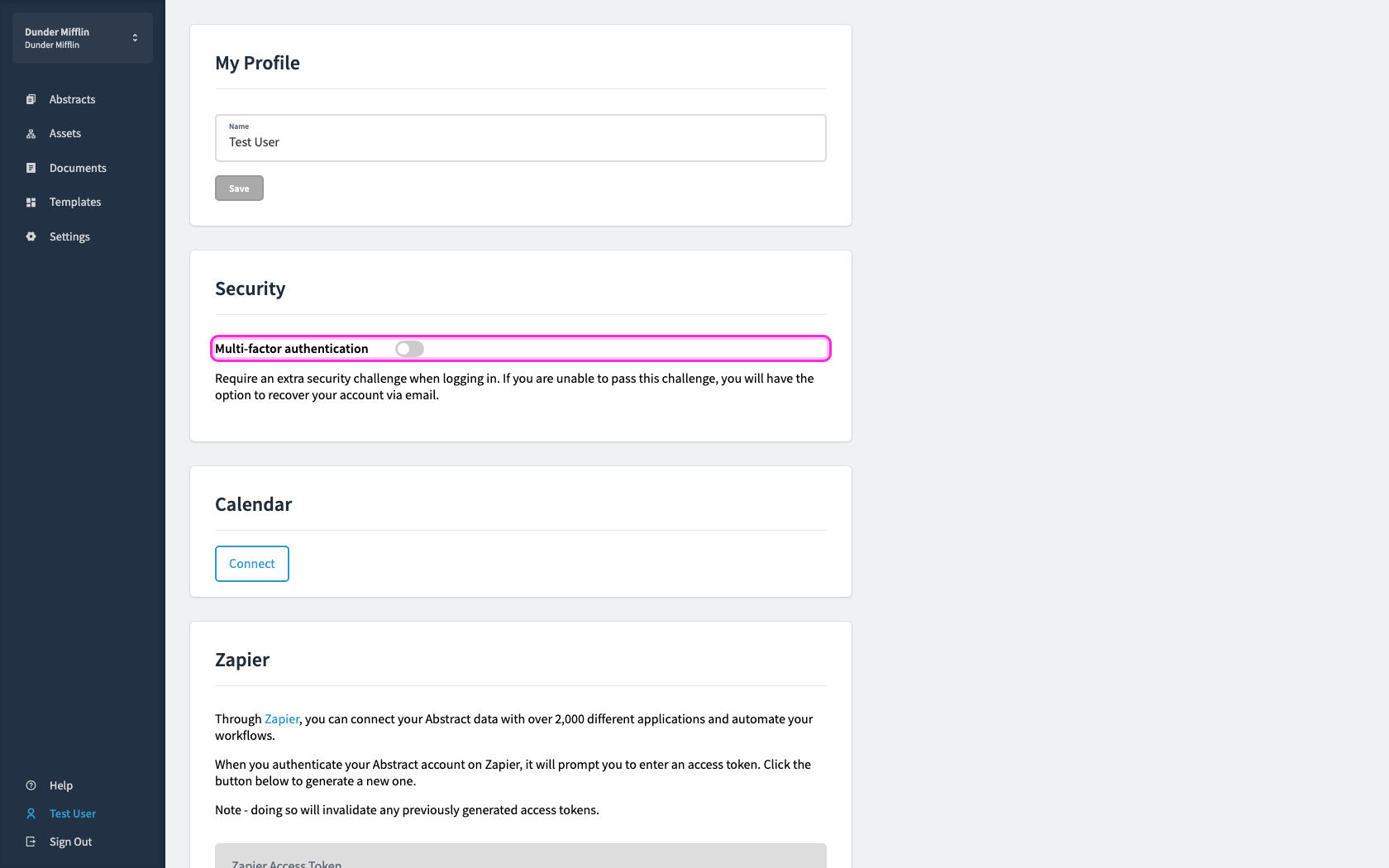
In the Security section, click the toggle to the right of Multi-factor authentication.
Check the box next to "I understand I'll need to complete Set up Multi-factor Authentication to access my account," then click Continue.
A modal appears. Check the box, then click Continue. After that, AbstractCRE sends you through the authenticator setup screens below.
Scan the QR code with Microsoft Authenticator.
You should now see a screen that looks like this.
On your phone, open Microsoft Authenticator.
Tap the plus sign or Add account.
Tap Work or school account.
Tap Scan a QR code.
If the app asks for permission to access your camera, tap Allow.
Point your phone's camera at the QR code on your computer screen.
If you cannot scan, tap "Trouble Scanning?" and enter the setup key shown there.
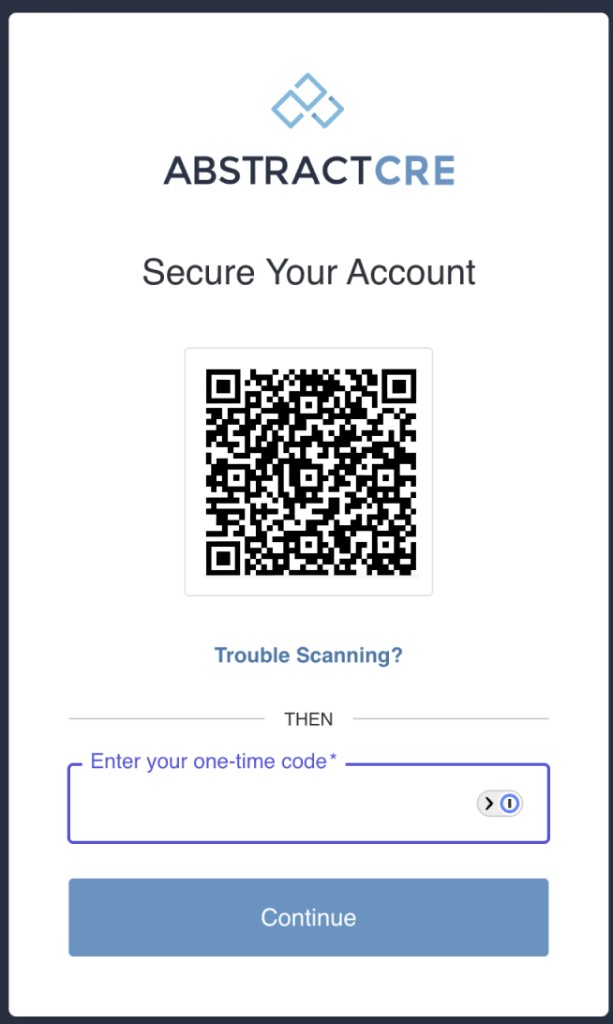
Enter the six-digit one-time code, then click Continue.
The account is added to the app and a six-digit one-time code is displayed.
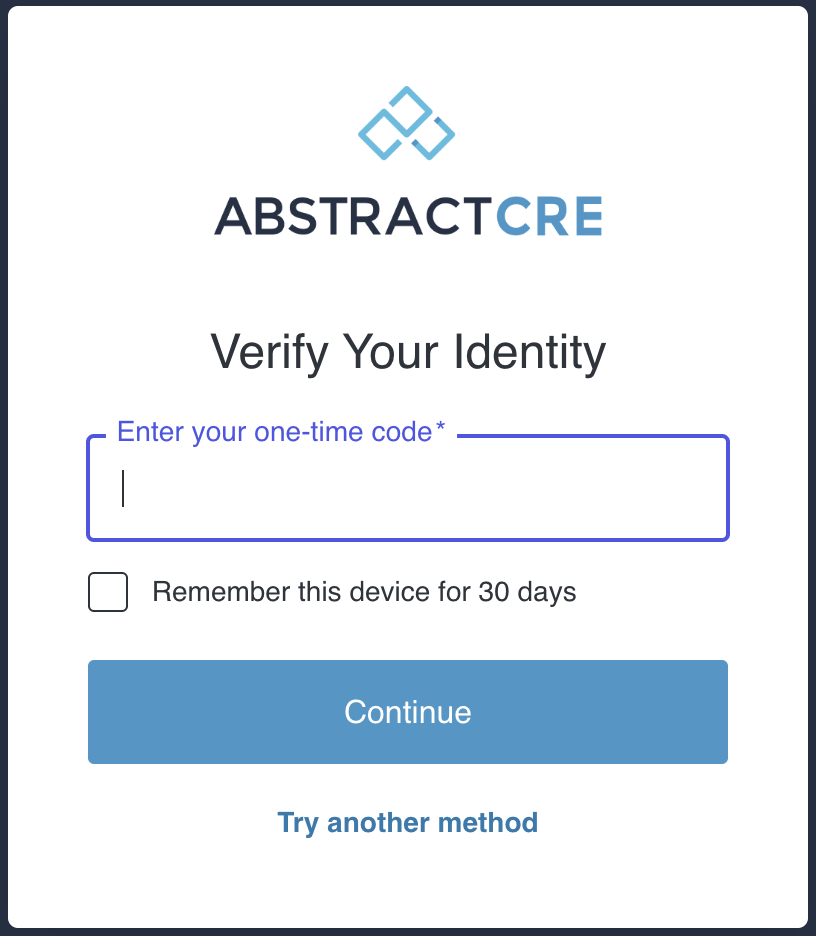
Enter that code on your computer, then click Continue.
Optionally check Remember this device for 30 days so you are not asked for a code on this computer every time.
You are done. For future logins, open the authenticator app to get a new code.