• Product
  • Templates
  • Pricing
AbstractCRE
LoginTry Now
  • Product
  • Templates
  • Pricing
Try Now

Help Center

  • Overview
  • Getting started
    • Create an Asset
    • Create an Abstract
  • Working in an abstract
    • Getting into Edit Mode
    • Edit a Field Value & Link
    • Create a Link
    • Remove a Field's Link
    • Change the Abstract Name
    • Change the Abstract Template
  • Search, AI, and data
    • Ask AI - Chat with Your Abstract & Documents
    • Keyword Search (All Documents)
  • Documents
    • Uploading
      • Uploading a Document to an Existing Abstract
      • Upload Misc Documents
    • Downloading
      • Download Individual Document
      • Download an Abstract's Documents
      • Bulk Download Documents by Asset
      • Bulk Download Documents (All)
    • Deleting
      • Deleting Documents
  • Exports and reports
    • Exporting Views to Excel
    • Exporting Views as a PDF
    • Export Abstract to Excel
    • Export Abstract to PDF
    • Exporting Dates to Calendar
  • Team
    • Invite a New Team Member
    • Creating Custom Roles
    • Navigate Between Teams
  • Security
    • Set up Multi-factor Authentication

Exporting Views to Excel

Export a saved view to Excel.

1

On a table, click Export.

On a table, click Export.
2

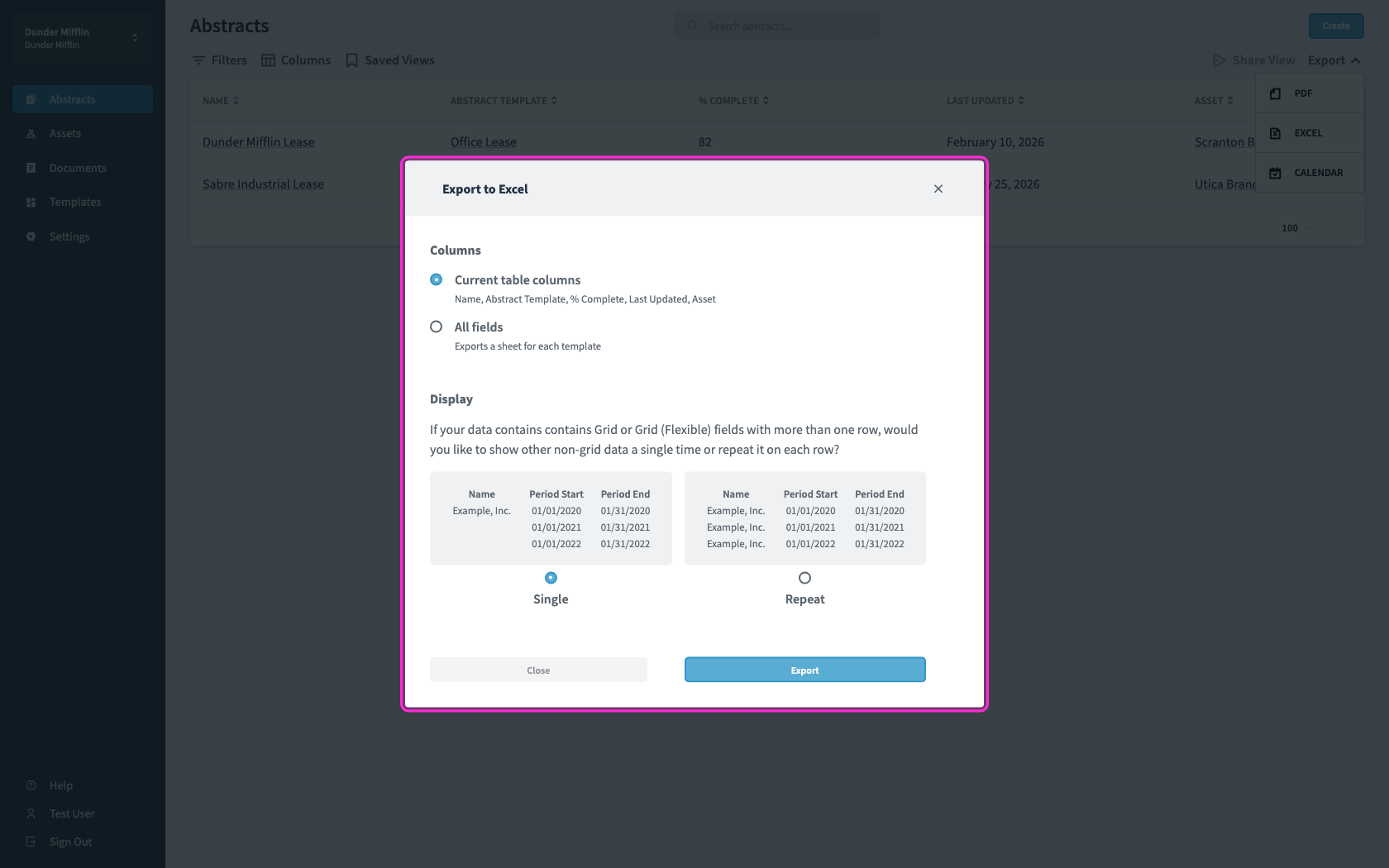
Choose Excel, then export the current columns or all fields.
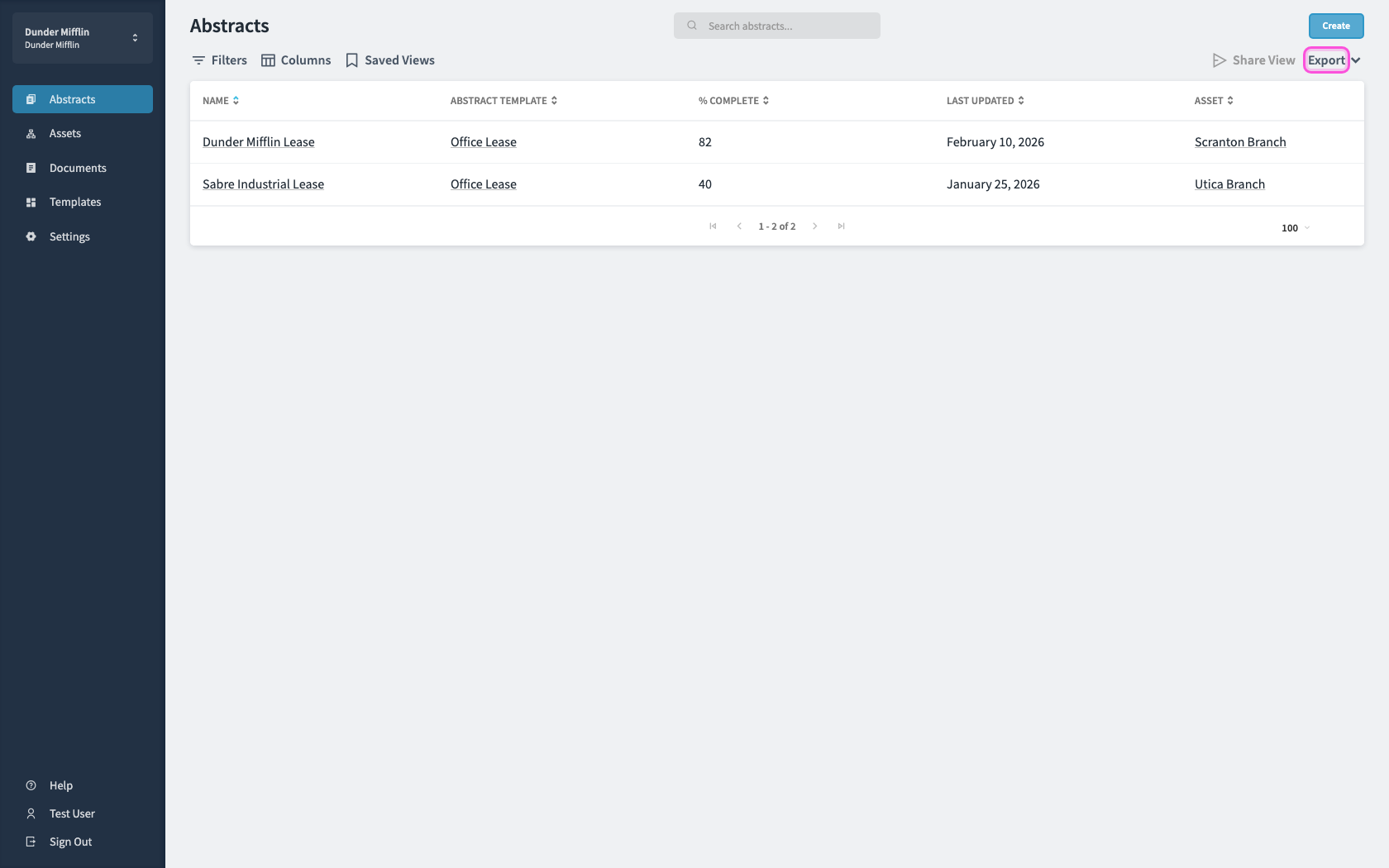
Choose Excel, then export the current columns or all fields.
Unlock AI for your real estate team today

Schedule DemoTry Now

Copyright © 2026 Abstract App, Inc.All rights reserved.

Platform

  • Product
  • Abstract Templates
  • Testimonials
  • Pricing
  • Company

Resources

  • Help Center
  • Developers
  • Privacy Policy
  • Terms and Conditions
  • Security
  • System Status

Connect

  • Linkedin
  • YouTube
  • Schedule Demo
  • Log In